Software inventory
Software inventory shows which applications are installed on your devices. Use it to find the devices that still run an old version of an application.
Software inventory is off by default. Only if an admin turns on application inventory can admins, members, and auditors see it on the Software inventory page.
Turn on application inventory
Section titled “Turn on application inventory”In Settings → General, turn on Application inventory. The agent then reports the applications installed on each Windows, macOS, and Linux device. On Linux, it reports applications with a desktop launcher, not every package.
Turning it off stops the collection and hides the inventory.
See the applications on one device
Section titled “See the applications on one device”Admins can open Devices, select a device, and choose Apps. Search by name or version, or click Export for a CSV file. Select an application to see its details.
See an application across devices
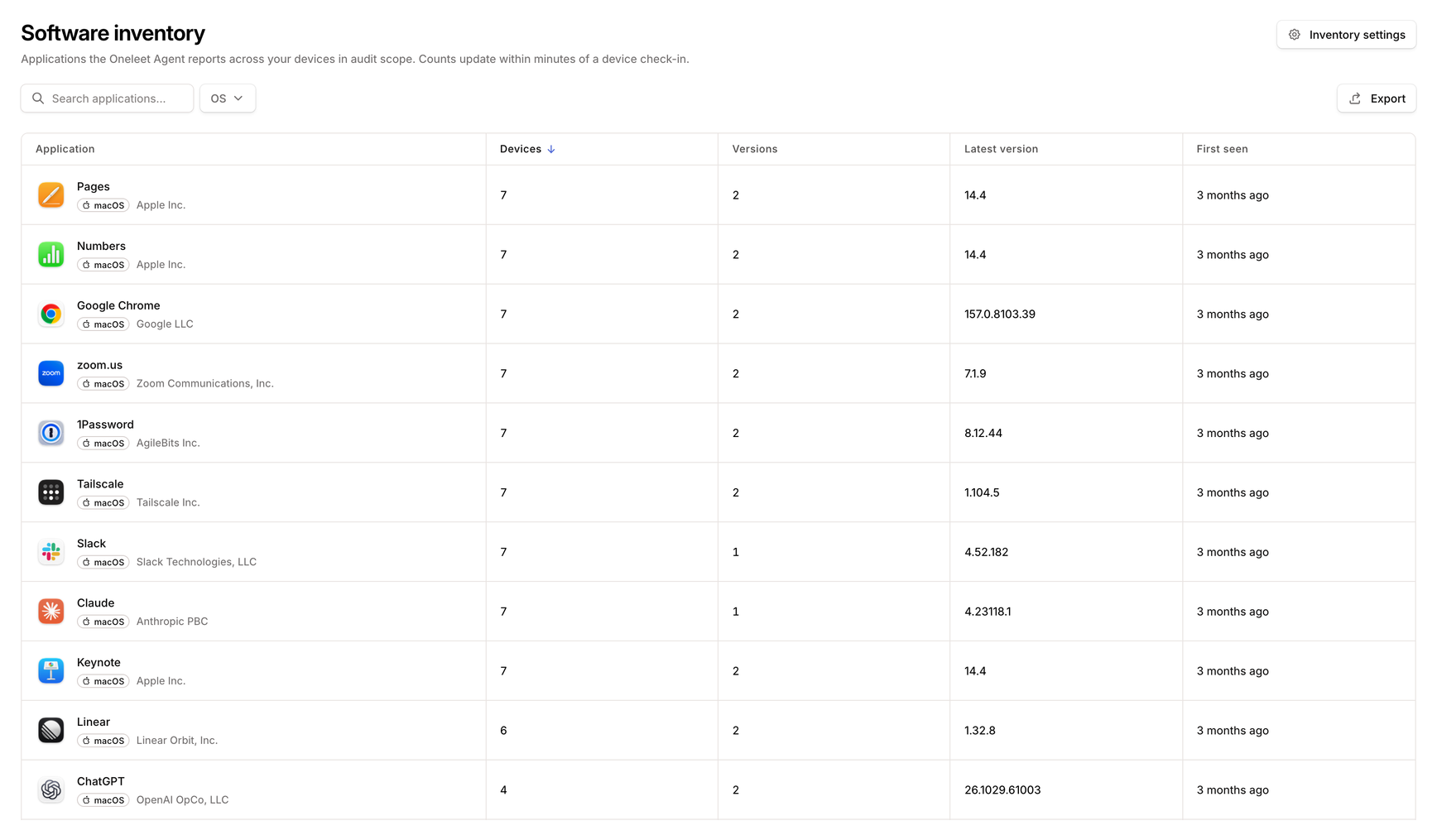
Section titled “See an application across devices”Open Software inventory in the sidebar. Each row is one application on one platform, with the number of devices that have it, the number of versions, and the latest version. The counts cover devices in audit scope, and they update within minutes of a device checking in.
Export downloads the rows loaded so far as a CSV file. The list loads more as you scroll, so scroll down first to export a longer list.
Select a row to see each installed version and the devices that have it. Tick versions to narrow the device list.
Update an application on the devices that have it
Section titled “Update an application on the devices that have it”With Oneleet MDM, admins can tick the devices on an old version, choose Install applications, and pick the application from the app catalog.