Enroll Macs with Apple Business Manager
With Automated Device Enrollment (ADE), a Mac in your company’s Apple Business account enrolls in Oneleet MDM on its own while it’s being set up.
Workspace admins connect Apple Business and assign Macs. Other members see the ADE Devices tab once it’s connected, but can’t sync or assign. Before you start, set up Apple MDM. Oneleet can’t assign Macs until your push certificate is uploaded.
Connect Apple Business Manager
Section titled “Connect Apple Business Manager”You connect Oneleet once, by adding it as a device management service in Apple Business. Your Apple Business or Apple School Manager role has to be able to view, add, and delete device management services.
- In the Oneleet Dashboard, go to Devices and open the ADE Devices tab.
- Click Download certificate.
- Sign in to Apple Business and open Devices > Management Services.
- Click Get Started if it’s your first service. Otherwise, click Connect external device management, then Continue.
- Name the service, upload the Oneleet certificate, and click Next.
- Click Download Service Token. A
.p7mfile downloads. - Back on the ADE Devices tab, upload the
.p7mfile and click Upload token.
In Apple School Manager, the same settings are under Preferences > Device Management Service Assignment. For Apple’s full instructions, see Connect a service in Apple Business.
Oneleet validates the token with Apple, which can take a few seconds. Your Macs appear after the first sync, so click Sync now to see them right away.
Assign Macs to Oneleet in Apple Business Manager
Section titled “Assign Macs to Oneleet in Apple Business Manager”In Apple Business, assign your Macs to the service you created for Oneleet. To send every new purchase to Oneleet, make that service the default for Macs.
Macs your company buys from Apple or an Apple Authorized Reseller, with the purchase linked to its Apple Business account, are added to the account automatically. To add a Mac you got another way, use Apple Configurator, which erases the Mac, so back it up first. A Mac added that way starts with a 30-day provisional period.
Oneleet syncs your Apple Business inventory every hour. To see a change sooner, click Sync now and confirm. If the list still looks wrong after a sync, turn on Full sync before syncing to read the whole inventory again, which takes longer.
A Mac can be assigned to only one device management service. If Apple Business assigns a Mac to another MDM, reassign it to Oneleet’s service. If the Mac is still enrolled in that other MDM, remove it from there before you enroll it in Oneleet.
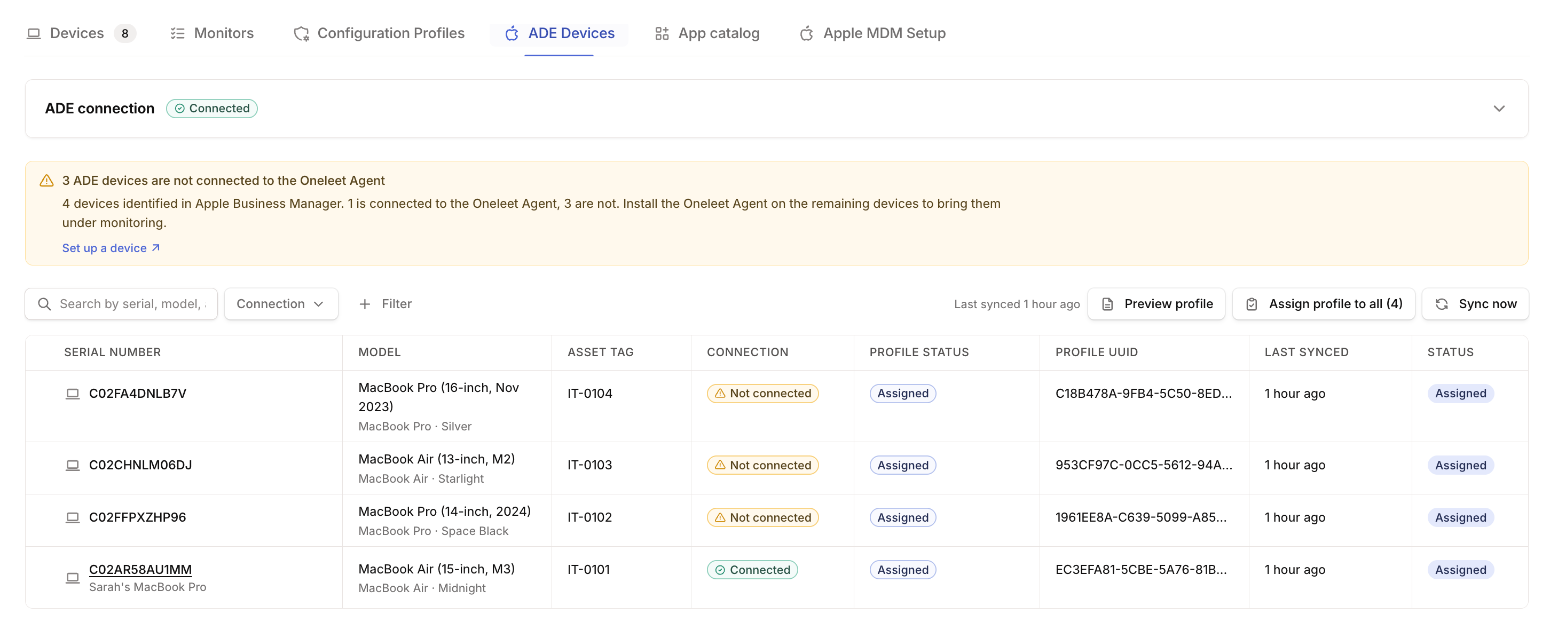
Assign the enrollment profile
Section titled “Assign the enrollment profile”A Mac enrolls during setup only if it has Oneleet’s enrollment profile. At each hourly sync, Oneleet assigns the profile to every Mac that doesn’t have it yet, so a new Mac usually has it within an hour of appearing in Apple Business. To choose the Macs yourself, turn off Assign the enrollment profile automatically on the ADE Devices tab.
To assign the profile right away, or while automatic assignment is off:
- Click Assign profile to all and confirm, or
- Select Macs in the table, click Assign profile, and confirm.
The ABM status column shows whether Apple Business assigns the Mac to Oneleet: Assigned, whether or not the Mac has the profile, or Removed with the date it was unassigned. Profile status shows the profile itself:
| Profile status | What it means |
|---|---|
| No profile | The Mac won’t enroll until it gets the profile. |
| Assigned | The Mac will enroll the next time it’s set up. |
| Pushed | The Mac downloaded the profile during setup. |
| Removed | The profile was removed from the Mac’s assignment. |
Assignment failed under a status means the last attempt didn’t go through. Hover over it for the reason. With automatic assignment on, the next sync tries again. Otherwise, assign the profile again.
What the enrollment profile does
Section titled “What the enrollment profile does”Click Preview profile on the ADE Devices tab to see what Oneleet assigns. The profile is named after your workspace, and on the Mac:
- Enrollment is mandatory, so the employee can’t skip it during setup.
- The employee can’t remove management, except during the 30-day provisional period for Macs added with Apple Configurator.
- The Mac is supervised.
- Setup keeps all of its screens, and the employee reaches the desktop while Oneleet configures the Mac in the background.
An assigned profile works for up to 30 days. With automatic assignment on, Oneleet assigns a new profile before then, so a Mac you erase and set up later still enrolls. With it off, assign the profile again to any Mac that isn’t set up within 30 days, and before you erase and set up a Mac whose profile is older than that.
Set up a Mac
Section titled “Set up a Mac”A new or erased Mac. During setup, the Mac shows a Remote Management screen and enrolls. It needs an internet connection.
A Mac that’s already in use. On the Mac, run this in Terminal and approve the enrollment:
sudo profiles renew -type enrollmentThe Mac then shows the Managed badge in Devices, and the Oneleet Agent installs automatically. On the ADE Devices tab, Connected only means the Mac has a device record, not that it’s enrolled.
Renew the service token
Section titled “Renew the service token”The service token is valid for a year. While it’s expired, Oneleet can’t sync your inventory or assign the enrollment profile.
- On the ADE Devices tab, open the ADE connection card and click Renew token.
- In Apple Business, open Devices > Management Services, select the service you created for Oneleet, and choose Download Token from the ••• menu. Don’t add a new service, because Macs assigned to the old one would stop syncing.
- Upload the new
.p7mfile and click Upload new token.
The ADE connection card marks the token Expiring soon in its last 30 days and Expired after that. Validation issue means Oneleet couldn’t validate the token with Apple. Renew it the same way to reconnect.
Stop managing a Mac
Section titled “Stop managing a Mac”Removing a Mac from MDM doesn’t change Apple Business. A Mac that’s still assigned to Oneleet there can enroll again the next time it’s set up, for example after it’s erased. To keep it out for good, also unassign it from Oneleet’s service or release it in Apple Business.
A Mac that’s no longer assigned to Oneleet’s service shows Removed after the next sync. The inventory hides these Macs until you choose Removed in the Connection filter. Unassigning a Mac doesn’t unenroll it if it’s already managed.
Apple’s 30-day provisional period
Section titled “Apple’s 30-day provisional period”A Mac added to Apple Business with Apple Configurator, instead of bought through it, can be released from management by the person using it for the first 30 days. Adding a Mac this way also erases it. See Apple’s guide.
Troubleshooting
Section titled “Troubleshooting”- A Mac doesn’t appear in the inventory. Check that it’s assigned to Oneleet’s service in Apple Business, then click Sync now.
- The last sync failed. The callout shows the error. An expired or invalid token is the usual cause, so renew the token.
- A Mac finished setup without the Remote Management screen. It didn’t have the profile yet. Assign it, then run
sudo profiles renew -type enrollmenton the Mac. - A Mac shows Remote Management but can’t enroll. Its profile was assigned more than 30 days ago. Assign the profile again, then retry enrollment on the Mac.
- A Mac belongs to another Oneleet workspace. It can’t enroll in yours until an admin of that workspace removes it. If you can’t reach them, contact Oneleet support.