Enroll Windows and Linux devices
Oneleet manages Windows and Linux devices through the Oneleet Agent, so there’s nothing to enroll separately. Every device with the agent connected is managed by default. This page covers changing which devices are managed and leaving personal devices out.
Workspace admins set enrollment rules.
Choose which devices are managed
Section titled “Choose which devices are managed”Windows and Linux each have an enrollment rule, and both start as All devices.
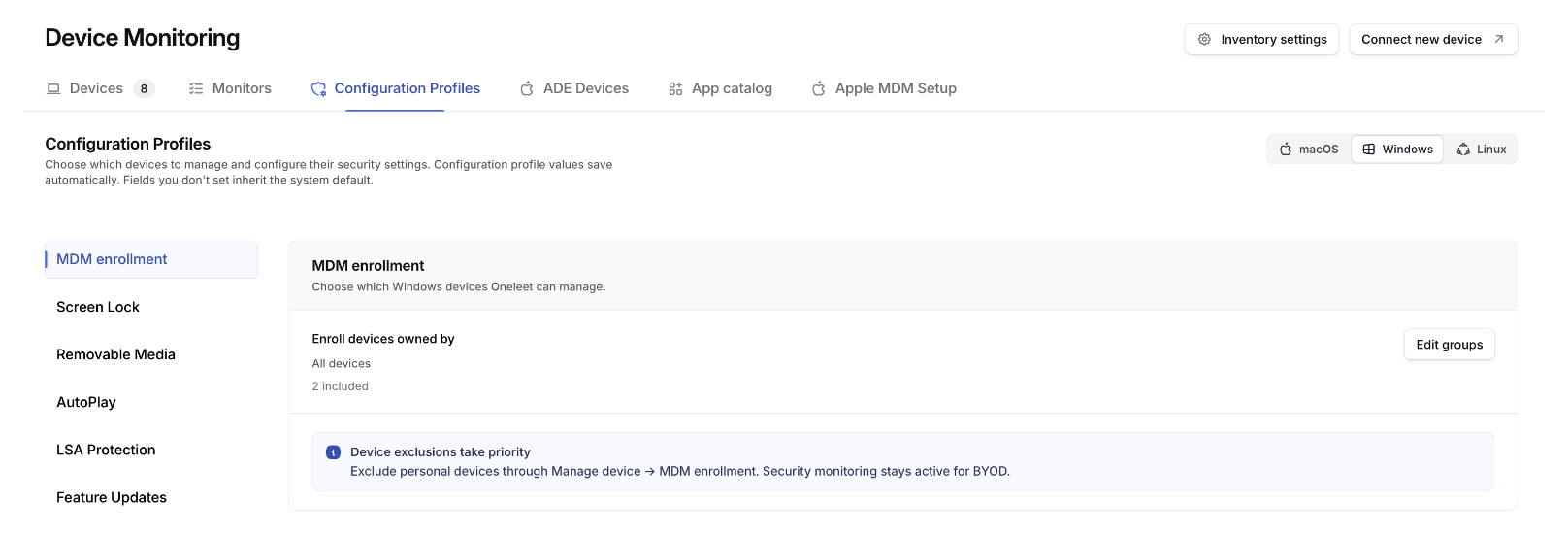
-
Go to Devices > Configuration Profiles and select Windows or Linux.
-
In the MDM enrollment section, click Edit groups.
-
Choose a rule:
Rule Manages All devices Every current and future device Specific people groups Devices whose owner is in a group you tick under Groups to include Devices selected individually Only devices you include one by one -
Click Review changes to see which devices will join or leave, then Save changes.
With Specific people groups, a device with no owner isn’t managed, and every device a group member owns is. You can’t delete a people group while an enrollment rule uses it, so remove it from the rule first.
Exclude a personal device
Section titled “Exclude a personal device”- Open the device and choose Manage device > MDM enrollment….
- Choose Exclude from MDM.
- Click Save changes.
The agent stays installed and the device’s checks keep reporting. The device can’t receive new remote commands, though one already delivered to the agent may still finish. On Windows, the agent stops enforcing your policies after its next policy download, within about 15 minutes while it’s online. Until then it keeps applying the policies it has, so a device that stays offline keeps enforcing them. Settings it already applied stay as they are, and excluding a device doesn’t decrypt its disk.
To manage one device regardless of the rule, choose Include in MDM in the same dialog. A choice made for one device overrides the rule. To undo it, choose Follow enrollment rules.
Check that a device is managed
Section titled “Check that a device is managed”A managed device shows the Managed badge on the Devices tab, once its agent is on version 2.3.0 or later. To list the ones that aren’t, click Filter, choose MDM enrollment, and select Not managed.