Enroll a Mac manually
Manual enrollment puts a Mac under Oneleet MDM by installing an enrollment profile on it. For how this differs from enrolling through Apple Business, see Choose an enrollment method.
Before you start:
- Set up Apple MDM for your workspace.
- Have someone with an administrator account on the Mac available to approve the profile.
- If another MDM manages the Mac, release it from that MDM first.
Send the profile to the Mac
Section titled “Send the profile to the Mac”If the Mac already runs Oneleet Agent 2.6.0 or later, a workspace admin can send the profile to it. The Mac must not be enrolled in an MDM, and your push certificate must be valid. Sending the request needs the Request Mac enrollment approval permission, which comes with the built-in administrator role and can’t be added to custom roles.
- In the Oneleet Dashboard, open Devices and select the Mac.
- Choose Manage device > Prompt user to enroll in MDM.
The Mac asks its user to Complete setting up device management, in a notification. On agents newer than 2.6.0, the prompt names you as the admin who asked, and if notifications for Oneleet are off, it appears as a small banner in the top-right corner of the screen instead. Agent 2.6.0 shows nothing when notifications are off. The request expires after 24 hours.
Download the enrollment profile
Section titled “Download the enrollment profile”If the Mac doesn’t have the agent, download the profile instead:
- On the Mac, open the Oneleet Portal and go to Devices.
- Click Download MDM profile in the top right. A file named
enroll.mobileconfigdownloads. The button appears once you’ve connected a device. Before that, click Install Oneleet Agent and find Download MDM profile under Apple MDM profile, at the bottom of the setup page. That section appears only when the page detects a Mac.
If Apple MDM isn’t set up, or its push certificate has expired, the portal doesn’t offer the profile. Admins can also open the setup page from the Oneleet Dashboard with Connect new device on the Devices page. To enroll a Mac for an employee, download the profile on your own computer and copy it to their Mac.
 3. Double-click the file.
Install the profile
Section titled “Install the profile”-
On the Mac, click Review profile on the prompt, or open System Settings > General > Device Management. If the prompt is gone, open the Oneleet menu in the menu bar and choose Continue device enrollment….
-
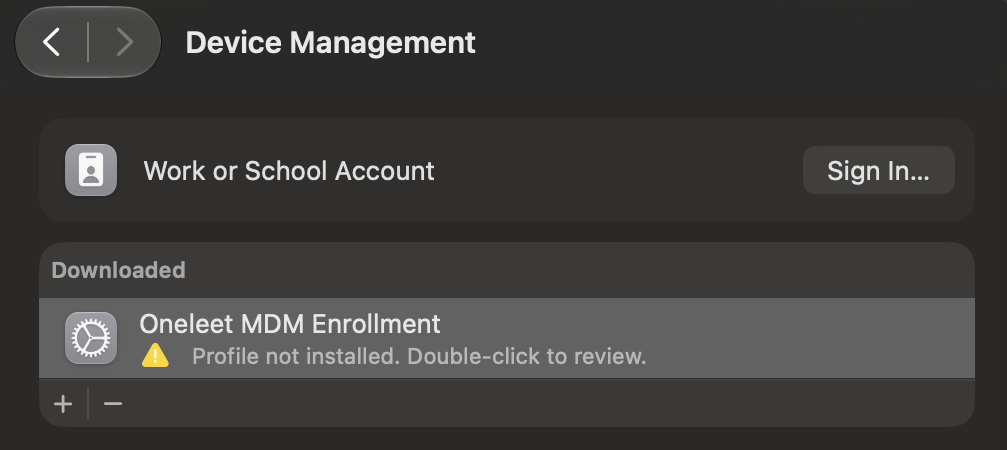
Under Downloaded, double-click Oneleet MDM Enrollment. On macOS 13, open System Settings > Privacy & Security > Profiles instead.
-
Click Enroll (Install on macOS 13), and enter an administrator’s password.
The Mac needs internet access while it enrolls.
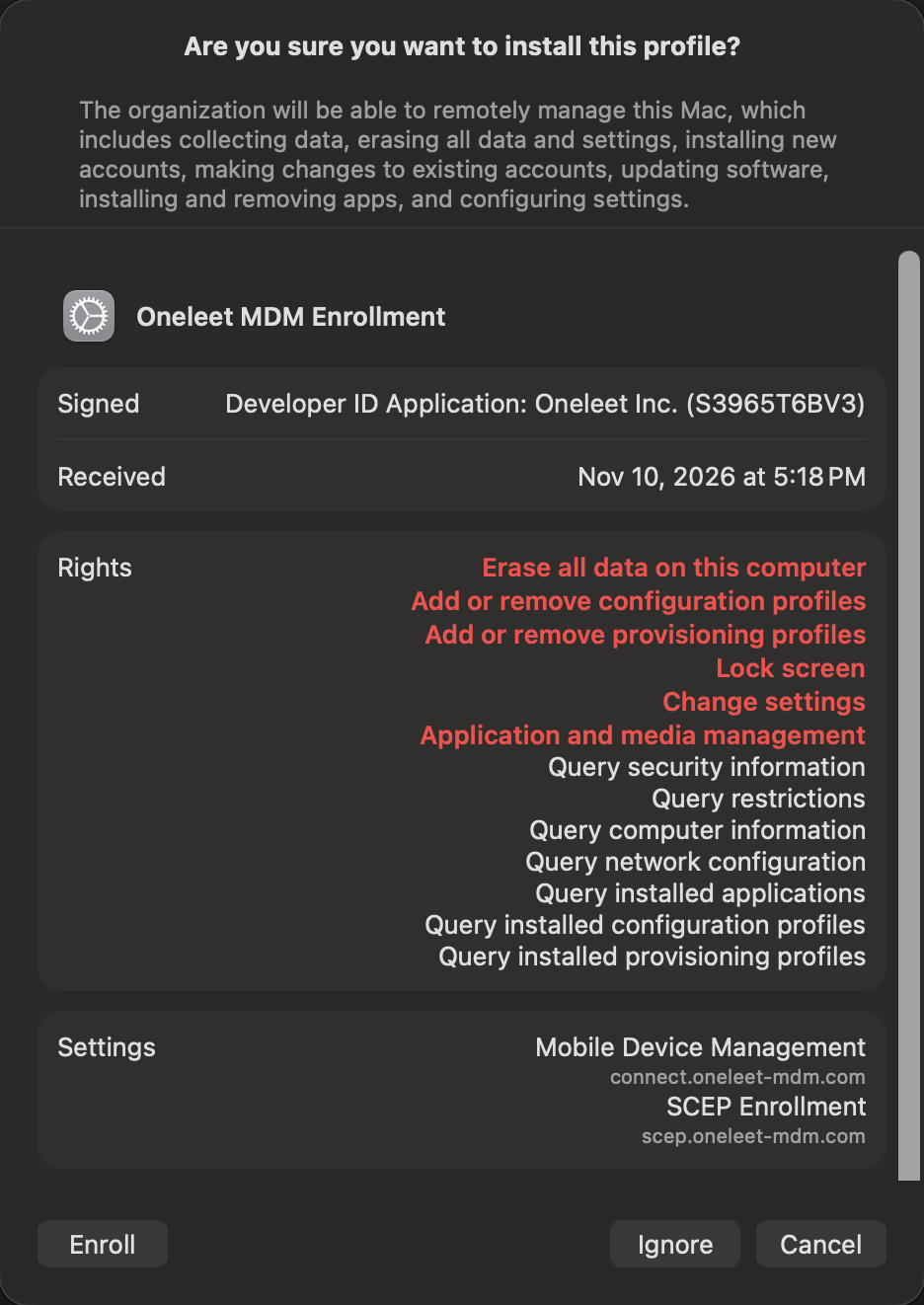
macOS lists everything a management profile allows before you enroll. To prepare the person using the Mac, send them What employees see.
Check that the Mac enrolled
Section titled “Check that the Mac enrolled”In the Oneleet Dashboard, the Mac shows the Managed badge. On the Mac, the Oneleet Agent’s MDM row shows Enrolled and Oneleet MDM.
If the Mac didn’t have the Oneleet Agent, it installs automatically.
Limits
Section titled “Limits”- An administrator on the Mac can remove the profile. See When a profile is removed.
- Erasing the Mac removes the enrollment.
- A Mac that belongs to another Oneleet workspace can’t enroll in yours until that workspace removes it.
To end management yourself, use Remove from MDM.