Ignore rules
As your application changes, an issue you’ve already reviewed and accepted in one part of the app may appear elsewhere and generate new findings. Other findings you may not want to be alerted about at all, such as informational or low-confidence findings in less critical applications.
Ignore rules let you describe those findings once, and every match is suppressed automatically, across all current findings and any future ones. This guide explains how rules work and walks through creating and managing them.
How ignore rules work
Section titled “How ignore rules work”An ignore rule describes a set of findings. Every finding that matches the rule is suppressed: it doesn’t count as open and doesn’t trigger monitor alerts. A rule applies as soon as you save it to the findings you already have and to any that are detected later.
A finding is suppressed by one rule at a time. If several rules match the same finding, the oldest one applies, and its reason is the one shown on the finding. If that rule is later disabled or deleted, the finding moves to the next matching rule, or reopens if no other rules match.
Findings you’ve manually resolved, or marked in progress, keep that status even when a rule matches them.
Ignore rules are one of three ways to deal with unwanted findings, and not always the best one:
- If you’ve investigated a finding, resolve it by setting its status to fixed, false positive, accepted risk, or mitigated. The decision is recorded on that finding, which is better for your audit trail.
- If a pattern of findings keeps recurring and you don’t want to be alerted each time it’s detected, create an ignore rule. This automatically suppresses all current and future findings that match the pattern.
- If there is a part of the application you don’t want the scanner to test at all, use a scope exclusion.
Rule criteria
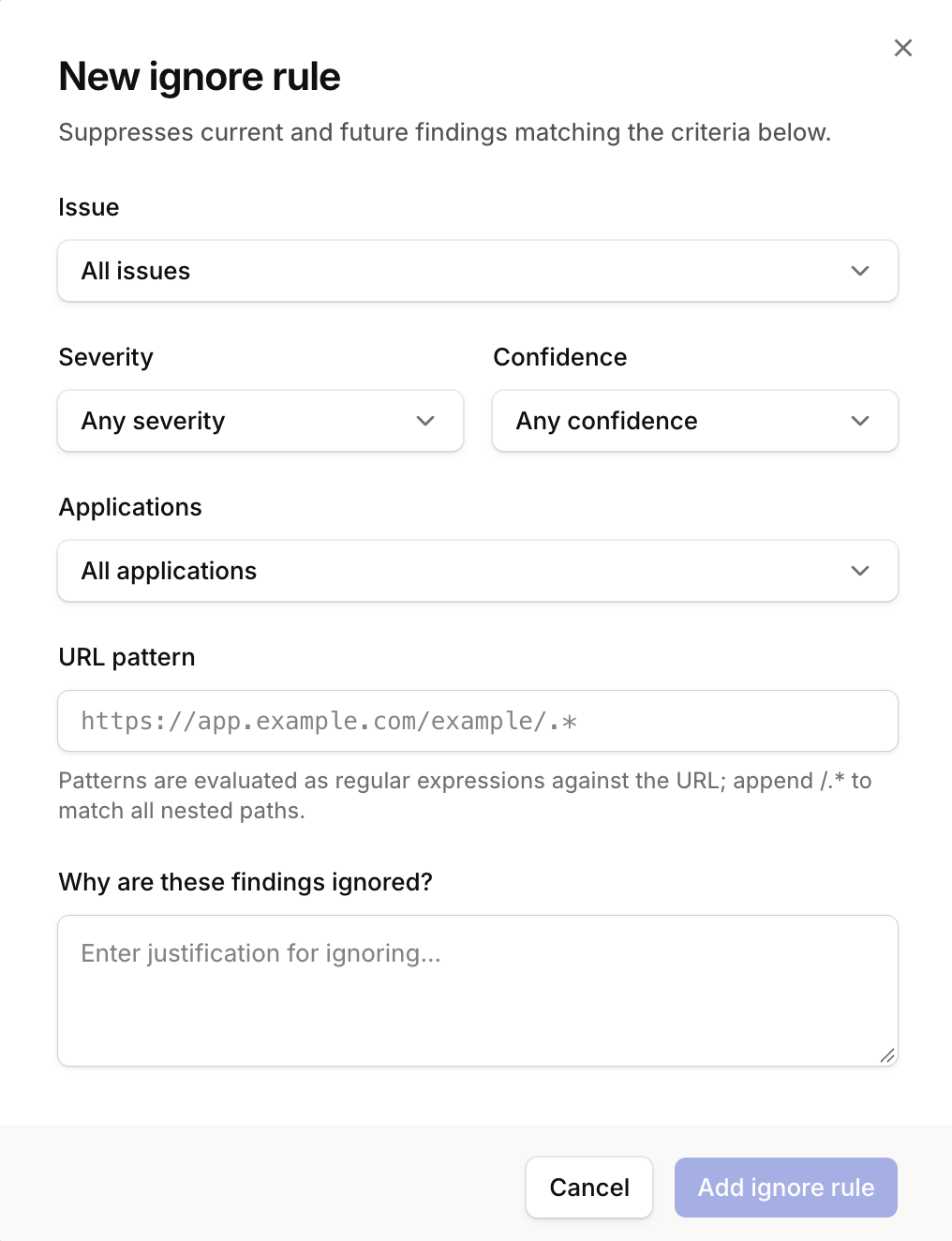
Section titled “Rule criteria”A finding is suppressed only if it matches every criterion in the rule. When a criterion is left empty, it matches anything.
| Criterion | Matches |
|---|---|
| Issue | A specific issue type, such as Content Security Policy (CSP) Header Not Set |
| Severity and confidence | Findings that have one of the selected severity or confidence levels |
| Applications | Findings in the selected applications, or in every application, including ones added later |
| URL pattern | Findings whose URL matches a regular expression |
URL patterns are matched the same way as scope patterns: as regular expressions against the full URL. https://app.example.com/example matches only that exact URL, https://app.example.com/example/.* matches everything beneath it, and a bare path like /example/.* matches nothing because the scheme and host are part of the match.
Creating a rule
Section titled “Creating a rule”- Click the Ignore button in the main Issues tab or inside a specific issue. From an issue, the rule is pinned to that issue; from the issues tab, it starts blank so you can define it by severity and confidence instead.
- Select an application(s) and set a URL pattern if needed.
- Provide a reason for the rule. The reason is shown on each finding the rule suppresses.
As you fill in the rule, a preview at the bottom of the form shows how many open findings it will suppress and across which issues and applications. If that’s more than you expected, narrow the rule before saving.
Managing rules
Section titled “Managing rules”You can find rules under Application security → Configure → Ignore rules. Each rule shows its criteria, its reason, who created it, and how many findings it currently suppresses.
To change what a rule covers, open its menu and choose Edit. The preview at the bottom of the form will show the effect of your changes before you save.
To disable a rule and reopen the findings it suppresses, open its menu and choose Disable rule. The rule can be enabled again later.