Install the agent
The Oneleet Agent checks your computer’s security settings and tells you what to fix. Installing and connecting it takes a few minutes. Privacy covers what it reports and who can see it.
You need an administrator account on the computer and access to the Oneleet Portal. If you can’t sign in to the portal, ask your admin to add you.
Admins can deploy the agent with an MDM instead, so nobody installs it by hand.
System requirements
Section titled “System requirements”| Operating system | Requirements |
|---|---|
| macOS | macOS 13 or later, on Apple silicon or Intel, with 8 GB RAM |
| Windows | Windows 10 or later, 64-bit, with 8 GB RAM |
| Linux | x86_64 or arm64, with 8 GB RAM |
Download and install
Section titled “Download and install”Sign in to the Oneleet Portal, open Devices, and click Install Oneleet Agent. If you’ve set up a device before, click Connect another device.
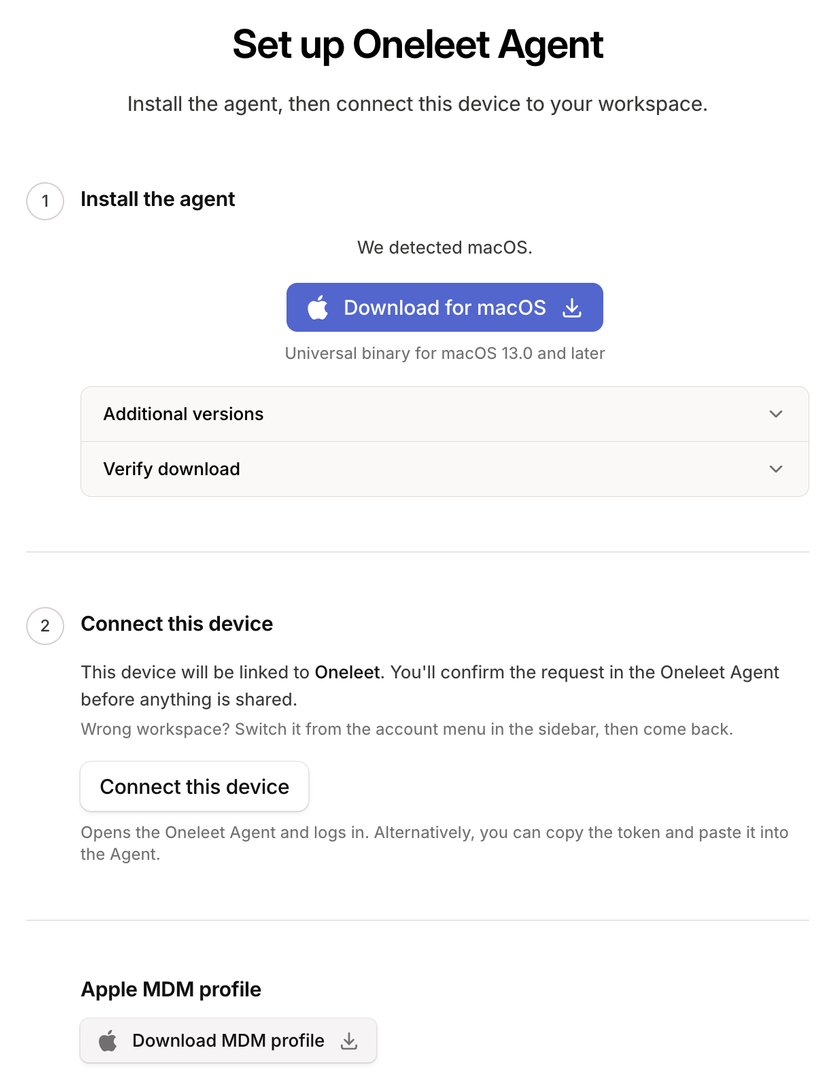
- Click Download for macOS.
- Double-click the
.pkgfile and follow the installer. - Open Oneleet from the Applications folder.
- Download the agent for Windows.
- Double-click the setup
.exefile and follow the installer. - Open Oneleet from the Start menu.
- Choose your architecture and package format, then click Download for Linux. Run
uname -min a terminal: choose AMD64 forx86_64, or ARM64 foraarch64orarm64. Choose DEB for Debian-based distributions such as Ubuntu or Mint, or RPM for Fedora, RHEL, or CentOS. - Install the package with your package manager.
- Open Oneleet from your applications menu.
Connect the agent
Section titled “Connect the agent”The agent doesn’t report anything until you connect it to your workspace.
- In the Oneleet Agent, click Connect this device. The Oneleet Portal opens in your browser.
- In the portal, click Connect this device, and let your browser open the Oneleet Agent.
- In the agent, check that the workspace and your name are right, then click Connect. If you don’t recognize the workspace, click Decline, which cancels the request.
- Approve the administrator prompt.
If the agent doesn’t open from the browser, copy the enrollment token the portal shows. In the agent, click Already have a token?, paste it, and click Connect. Then check the workspace name, click Connect again, and approve the administrator prompt. A token works once and expires after 30 minutes.
Connect from a terminal on Linux
Section titled “Connect from a terminal on Linux”On a Linux device without a desktop, get an enrollment token from the portal on another computer, then run:
sudo oneleet-cli login --enrollment-token-stdinPaste the token, press Enter, then press Ctrl+D. Check the workspace it asks you to confirm, and type y to connect. To check whether the device is connected, run oneleet-cli status.
If the computer you get the token on also has the Oneleet Agent, don’t let your browser open the agent there. Declining or closing it there cancels the token.
Open the agent
Section titled “Open the agent”The agent keeps running in the background. Click its icon in the macOS menu bar, the Windows system tray, or your Linux desktop panel, and choose Open. On Windows, the icon may be under the Show hidden icons arrow.
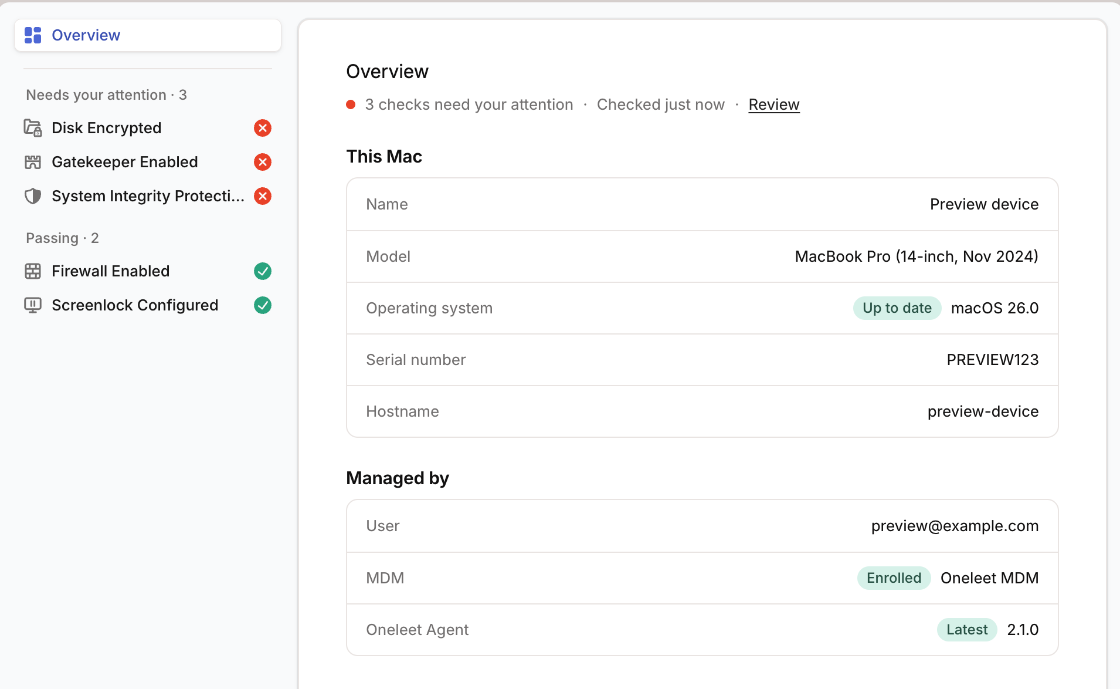
Checks under Needs your attention come with steps to fix them. See Fix a failing check.